Migrate to Batch
Important notice
Our legacy integration method Worldline Batch (advanced) will remain available until 30 June 2026.
Intro
The Batch is the enhanced GoPay version of the legacy Worldline Batch (advanced) integration method. You collect your customers' card data or use existing tokens to submit transactions at your own pace.
- Optimised scalability for submitting huge amounts of transactions/maintenance operations
- Enhanced security by including the data directly in the request body
- Robust data validation through early checks
This guide explains how to migrate from Worldline Batch (advanced) to GoPay Batch.
GoPay does not support the legacy integration method Worldline Batch (Basic). Refer to the dedicated chapter in the "Migrate to GoPay" guide to learn more.
Make the move
Thanks to the GoPay REST API's and our platform's features, migrating from the legacy Batch (advanced) to the GoPay Batch is easy.
Use this checklist to let us guide you through the whole migration process:
- Get familiar with Batch
- Understand differences legacy Worldline Batch (advanced) and GoPay Batch
- Set up/Create a test account
- Choose the way you want to implement GoPay
- Modify the target endpoint URL and batch file format
- Configure your test account
- Reporting and reconciliation
Get familiar with Batch
Understand differences legacy Worldline Batch (advanced) and GoPay Batch
GoPay Batch implements the same core feature like legacy Worldline Batch (advanced): Bulk upload of card data for asynchronous transaction processing.
However, there are some differences to consider when migrating:
| Item | GoPay Batch | Legacy Worldline Batch (advanced) |
|---|---|---|
| Target endpoint Urls | Dedicated endpoints for each stage within a Batch file's life cycle. Learn more in chapter "4. Modify the target endpoint URL and Batch file format". | One single endpoint for each stage within a Batch file's life cycle. |
| File parsing pipeline | Automatic parsing/file format validation. | Multi-step (manual) parsing and file format validation. |
| Batch file format | Supports only JSON data. Learn more in chapter "4. Modify the target endpoint URL and Batch file format". | Classic ASP file upload integration. Supports multiple file format. |
| Batch file validation model | Batch files are either valid or invalid. | Distinction between valid / invalid / partially valid Batch states. |
| Batch completion notification / transaction feedback | Dedicated Batch endpoint provides Batch-level status. Detailed transaction-level results are available through the reporting capabilities. | E-mail notifications from our platform about Batch file validation results. Detailed transaction reporting available via dedicated endpoint. |
Set up/Create a test account
You can keep using your existing PREPROD (test) account to get started. To activate GoPay in your PREPROD (test) account, follow these steps:
- Log in to the PREPROD (test) Back Office.
- Go to Configuration > Account > Your options.
- In "Available options", look for "DIR (Merchant using Direct integration)" and click on "Activate".
In addition to this, make sure the Batch option is activated for your account subscription. Contact us to confirm this.
If you cannot find "DIR (Merchant using Direct integration)", then it is activated by default. Look in the "Default options" to confirm.
Choose the way you want to implement GoPay
Ways to integrate
1Use our SDKs
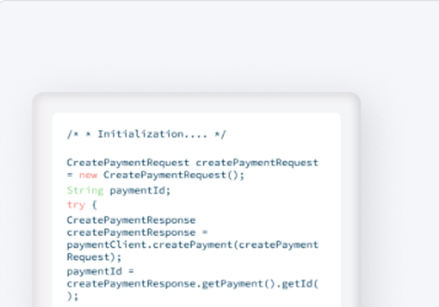
Our Server SDKs wrap the GoPay API in a highly efficient and accessible way, allowing you to create your own application easily.






2Create custom integrations
Freeing you from any possible dependency, all our REST API endpoints are also directly accessible via a specific authentication process.
Modify the target endpoint URL and batch file format
Modify the target endpoint URL and the data formatting for processing transactions or maintenance operations.
Target endpoint Urls
Batch via both GoPay/legacy use individual API endpoints for individual steps in the batch processing flow.
| Legacy endpoint | GoPay endpoint |
|---|---|
|
https://ogone.test.v-psp.com/ncol/test/AFU_agree.asp Used for
in one go or individual steps. |
Used only for uploading and data validation in one go. |
|
Used for processing previously uploaded data. |
|
|
https://ogone.test.v-psp.com/ncol/test/payment_download_ncp.asp Used for retrieving transactions contained within a batch file |
Dedicated Batch endpoint provides Batch-level status. Detailed transaction-level results are available through the reporting capabilities. |
Batch file format
Legacy batch files are plain text files, with each individual line representing one transaction. Batch via GoPay is built upon JSON, requiring you to reformat the data to be sent in your requests. Our dedicated GoPay Batch guide provides detailed information, for both general instructions and specific use case.
Configure your test account
GoPay reduces your efforts by outsourcing most of the Back Office technical settings to the GoPay API. However, you need to make some basic configurations in your account:
- Configure your API Key/API Secret to set up the GoPay authentication mechanism. Read our dedicated guide to learn how to do this.
- Configure your Webhooks Key/Webhooks Secret to receive feedback for processed transactions. Read our dedicated guide to learn how to do this.
Check out our comprehensive guide to learn about how your existing account settings translate to the GoPay API.
Reporting and reconciliation
You can follow up on Batch transactions through the e-Portal.
The e-Portal offers detailed reporting via:
- Immediate reports for near real-time transaction monitoring and investigation.
- Scheduled reports for recurring reporting, reconciliation, and large-volume data exports.
Available reporting capabilities include:
- Transaction-level reporting.
- Aggregated transaction totals.
- Capture reporting.
- Automated report delivery through SFTP.
Refer to the "Reporting" chapter in the e-Portal guide for more information.
Make sure your webshop infrastructure receives and processes our platform's transaction feedback according to the payment.id logic.
GoPay offers webhooks and endpoint GetPaymentDetails to get all information you need to follow-up on your orders.
To enhance transparency, GoPay implements three properties to represent a transaction status:
- status
- statusCategory
- statusCode
Check out our comprehensive Status guide for all possible return values, including a mapping of classic parameter STATUS to the aforementioned properties.
Go live
Are you ready to go live?
Use your existing live account – no need to create a new one! But make sure to
- Modify the target endpoint URL and batch file format (as explained in step 5)
- Configure your API Key/API Secret and your Webhooks Key/Webhooks Secret (as explained in step 6)
- Transfer your legacy Back Office settings to the Merchant Portal or outsource them to the GoPay API
You're all set, now what? Start enjoying all the advantages of Direct!
- Effective fraud prevention modules.
- Manifold advanced features.
- Best practices guide lines.