VTEX
Introduction
Our VTEX plug-in comes with regular updates and full integration support, offering a versatile out-of-the-box solution to accept online payments easily:
- Ideal solution for businesses of any size using the VTEX cloud-based e-commerce platform.
- Supports seamless integration across online, mobile, and in-store channels.
- Enables full access to all available payment methods on our platform.
- Compatible with VTEX’s marketplace capabilities, allowing expansion through third-party sellers.
- Includes tools for managing inventory and processing orders efficiently.
VTEX supports the following integration methods :
- Hosted Checkout Page: Redirect your customers to the Direct payment page for any of our available payment methods.
Find the complete list of payment methods the plugin supports in our payment methods overview.
Keep an eye on our Release Notes to stay informed about updates and new features (i.e. payment methods, features, integration methods) we have added to this plugin!
Check out our documentation to learn how to link your store with our platform to profit from all these features!
Account Creation
To process transactions with this plugin, you need an account on our platform.
This plugin works with both our test and live environment. A test account is a great way to get familiar with both the plugin and our platform. Once you want to go live, create a production account or contact us!
Installation
Install plugin
The first step to use the plugin is the installation process. Before you proceed, make sure the following prerequisites are met:
|
Item |
Description |
|
Direct credentials |
|
|
PCI compliancy |
SAQ A |
Once done, follow these steps:
- Go to Store Settings > Payment > Providers. Click on the New Provider button and search for "Worldline Global Online Pay". The provider will appear in the list.
- Select the Worldline Global Online Pay provider. A warning banner will appear indicating that the corresponding application needs to be installed.
- Click on the "Install app" button in the warning banner. This will open the Worldline Global Online Pay application installation screen.
Configuration
After the installation, you need to configure the plugin to link your store to our platform.
Configure basic settings
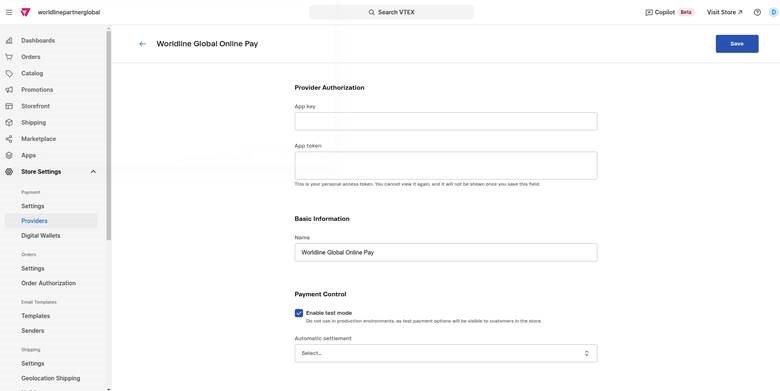
Once you add the Worldline Global Online Pay provider, you will be redirected to its configuration page.
Integration offers several configuration sections:
- Provider Authorization - API key and secret for communication with Worldline API
- Basic Information - the name of the provider
- Payment Control - to use test mode or production
- Provider Fields - Worldline configuration
|
Property |
Description/Actions |
|
Provider Authorization |
|
|
API key |
Enter the API Key of your test or live PSPID. Read our dedicated guide to learn how to generate one. |
|
API Secret |
Enter the API Secret of your test or live PSPID. Read our dedicated guide to learn how to generate one. |
|
Basic Information |
|
|
Name |
Desired name to present for this provider. |
|
Payment Control |
|
|
Enable test mode |
Tick off, if you are testing payment options - when unticked, the options linked to this provider will be visible to customers in the store. |
|
Workspace |
VTEX workspace for testing. |
|
Automatic settlement |
Select whether to process the settlements and when. Possible options:
|
|
Provider Fields |
|
|
Environment |
Links the channel to the respective Worldline environment and configures the respective test or live credentials for Worldline API (pre-production or production). |
|
PSPID |
Enter your PSPID from our platform that you want to use for transaction processing. |
|
Webhooks Key |
Webhooks Key of test or live PSPID from the Merchant Portal. Credentials must be stored encrypted in the database. |
|
Webhooks Secret |
Webhooks Secret of test or live PSPID from the Merchant Portal. Credentials must be stored encrypted in the database. |
|
Payment action |
Select whether to process the transactions as authorization mode or as direct sale. Possible options:
|
|
Automatic capture |
Select if and after which period the capture action should be done for transactions. Possible options:
|
|
Enable 3-D secure authentication |
Activating this option allows the issuer of the customer card to request the 3-D Secure process to be triggered. |
|
Request authentication exemption for low-value baskets |
Activating this option will request to issuer not to request a strong customer authentication for the payment if the value of the basket is below 30 EUR. |
|
Enforce strong customer authentication for every payment |
Activating this option will request the issuer to always go for a challenge flow during the 3-D Secure process. |
|
Enable group cards |
Group or separate credit cards on the hosted checkout page. |
|
Template file name |
Enter the file name of the template to adapt the payment page to the look and feel of your shop. |
|
Oney3x4x payment option |
Configure payment option as defined on your Oney 3x4x contract. You can find the value directly from your Oney interface. |
|
Session Timeout |
Set in minutes how long the hosted payment page session should last. |
|
Direct Debit Recurrence Type |
The type of direct debit recurrence. Possible options:
|
|
Direct Debit Signature Type |
The type of direct debit signature. Possible options:
|
|
Bank transfer by Worldline Instant payment only |
Enable if the consumer can only use instant payment for Account to Account Bank transfer payments. |
Application configuration
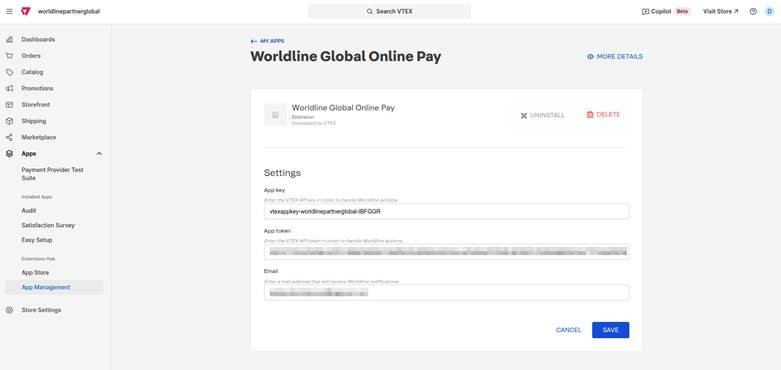
Once you install the application, the system automatically redirects you to the configuration page, where you can access the following options:
|
Property |
Description/Actions |
|
App key |
Enter the VTEX API key in order to handle the Worldline actions. This is mandatory if you want integration to handle capture, refund and cancel actions from Worldline portal. |
|
App token |
Enter the VTEX API token in order to handle the Worldline actions. This is mandatory if you want integration to handle capture, refund and cancel actions from Worldline portal. |
|
|
Enter a mail address that will receive Worldline notifications regarding the capture, refund and cancel actions. |
Creating app key and token
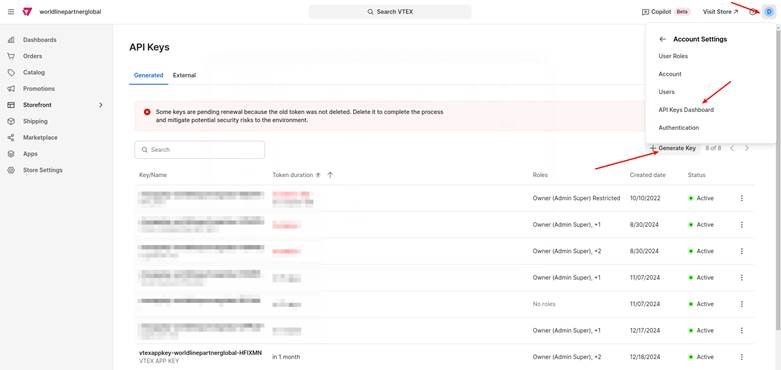
In order to provide the VTEX app key and token pair, you must generate one in your VTEX account. Go to the Account icon > Account Settings > API Keys Dashboard and press the “Generate Key” button.
The system will display a popup where you can define a name for the key and assign a role. Ensure the selected role includes the following resources:
|
Product |
Category |
Resource |
|
PCI Gateway |
Payment-Make Payments |
Process payments |
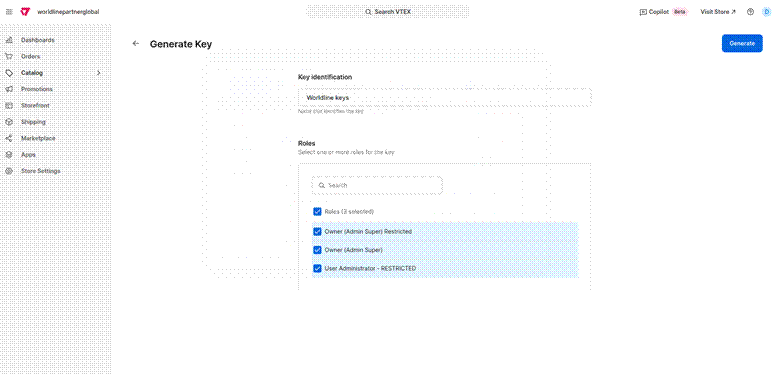
When you click the “Generate” button, the system displays the key and token.
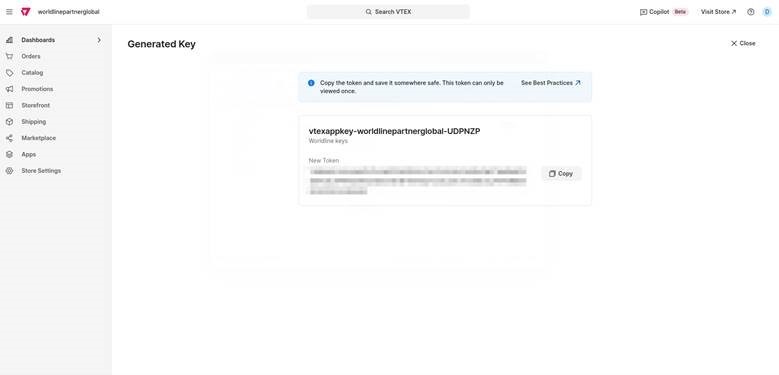
Copy the key and token, then paste them into the application configuration page.
Payment methods settings
VTEX gives the possibility to natively offer payment methods configured in VTEX as single payment buttons by associating the payment method with a specific provider. In order to do so, go to Store Settings > PAYMENT > Settings and configure the following payment methods so that Worldline Global Online Pay will be offered as a provider:
- American Express
- Bancontact
- Bizum
- Diners Club
- Discover
- iDEAL
- JCB
- Klarna
- Mastercard
- Multibanco
- Paypal
- Visa
- Worldline Global Online Pay
Manage payments
We have designed the plugin to follow-up on your orders automatically and autonomously, freeing you from the administration involved. Follow the instructions below to effectively use the app and ensure a smooth payment flow.
Perform maintenance transactions in the VTEX Back Office
Captures, refunds and cancellations of authorisations are standard processes (maintenance operations) in your everyday business logic. Learn here how to perform these operations directly in the VTEX Back Office:
- Login to your VTEX Back Office.
- Go to Orders > All orders.
- Select the order for which you would like to perform a maintenance operation.
All these actions are processed by VTEX and automatically communicated to Worldline:
- Cancel authorization: Triggered by canceling the authorized order.
- Capture: Triggered by creating an invoice.
- Refund: Triggered by returning the items
Perform maintenance transactions in the Merchant Portal
It is possible for you to handle your maintenance operations directly from the Worldline Merchant Portal, and still integrate the result of the maintenance in VTEX.
In order to do so, please make sure that the API key and API secret are correctly set in the Application configuration.
If these credentials are correctly set, the integration will automatically update the corresponding transaction status in VTEX, including:
- Settle
- Refund
- Cancel
You must still manually create the invoice in VTEX to trigger a settlement, return the items to process a refund, and cancel the order to cancel the authorization.
Perform test transactions
Use our platform's test environment to make sure your plugin works as intended. We offer test data sets on our dedicated Test cases page. Target our test environment as described in the "Configure Plugin" chapter.